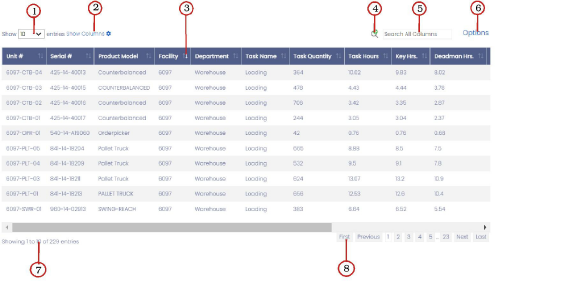
List view reports enable report information to be customize and organized. The numbers in the example List view report below correspond to the descriptions that follow.
The numbers in the list below correspond to the image above:
|
1. Show # entries |
Click the arrow to choose how many rows to display per page. |
|
2. Show or Hide Columns, Show or Hide Column Groups |
Enables you to customize a report to show only the information you want to see. a. Show (Hide) Columns: Shows all report column names that can be added to or removed from a report. When selected, the column names appear above the report header as in the example below: 
Click each column name(s) to add to or remove that column from the report. Click [Hide Columns] Hide Columns when finished to hide the list of column names. Column names that you grayed out will not show in the report. The small number that appears next to ’Show Columns’ and ’Hide Columns’ indicates how many columns have been hidden. Columns selected to be shown or hidden remain that way after the report is closed. b. Show (Hide) Column Groups: In some reports, ‘Show Column Groups’ appears next to Show Columns. These groups are predefined groups of columns that can be hidden from the report all at once. Click [Show Column Groups] Show Column Groups, located above the report column header, to expand a drop-down list of columns which have been grouped together by common characteristics. For example, if the Calculated group is selected from a list, then all the columns that have been created using a calculation are hidden from the report. Click [Hide Column Groups] Hide Column Groups to collapse the list. (The list will not hide if you select a location within the report. You have to click [Hide Column Groups] Hide Column Groups.) The items in the list act as a toggle. To redisplay the columns on the report, select the same item in the list. The difference between Show or Hide Columns and Show or Hide Column Groups is that Show Columns displays all columns available for that report at the top of the report. You can then select which columns to show or hide in the report one column at a time. The Show Column Groups options lists predefined groupings of columns. |
|
3. Sort columns |
Select a column heading in a list report to sort a column in ascending or descending order. The arrows on the right side of the column heading indicate the current sort order. Column sort orders remain that way after the report is closed: Double arrow icon, Down arrow icon, Up arrow icon, |
|
4. Advanced Search |
Select to list more details about a column. Example 1: Wild cards If you entered 9%8. The search would find anything that begins with "9" and ends with "8" that has 0 or more characters in the middle. These would match: 98, 923458. These would not match: 098, 980, 9234587. Example 2: Find anything that matches Example 3: Find exactly what matches Example 4: Find one OR the other Note: The search criteria must be typed exactly as space-OR-space for the search to work correctly. If you entered "1%6" OR 98. These would match: 16, 123456, 198, 7980, 980, 98. These would not match: 016, 160, 1234567, 918. |
|
5. Search all columns |
Enter the first few letters, words, or numbers of the information to view. The system searches as the information is entered. To enter multiple search criteria, add a space between the entries. For example, "item1 item2 item3". |
|
6. Options |
Use to automate reports, set up alerts, or add reports to the Dashboard. |
|
Shows the current position within the results, and how many entries are displayed out of the total number of available entries. |
|
|
8. First, Previous, Next, Last |
Enables you to select which report page to display: •"First" Displays the first page of entries. •"Previous" Displays the previous page of entries. •"1, 2, 3, ...." Displays a specific page of entries. •"Next" Displays the next page of entries. •"Last" Displays the last page of entries. |
Related Links
 = Column is not currently sorted.
 = Column is sorted in descending order (highest to lowest).
 = Column is sorted in ascending order (lowest to highest).