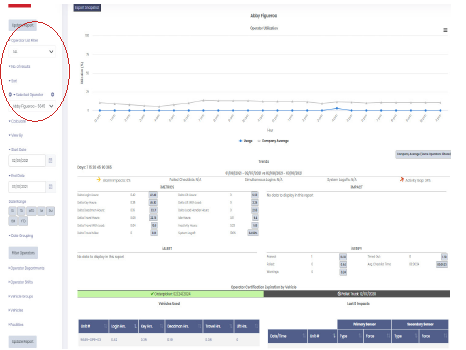
Snapshot reports pull data from all iWAREHOUSE GATEWAY modules, except Energy and Customer SO, into a single report that contains many smaller reports. This enables most of the data, data correlations, and company averages for a particular vehicle, operator, facilities, etc. to be consolidated and accessible from one location. The information that appears on the page as a snapshot report is determined by which data has been considered to be the most useful. An example snapshot report appears below:
Use the filters in the Filter pane to determine which information to view in the snapshot report. The filters in the snapshot Filter pane are the same as other GATEWAY report filters, except that snapshots have the additional Vehicle, Operator, or Facility section (circled in the example above). Use this section to choose the vehicles, operators or facilities on which to report.
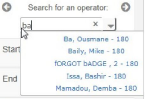
For example, if you selected to report on operator idle hours, then selected 10 from the No. of Results drop-down list, then 10 operators would be listed in the Search for an Operator drop-down list. If you selected five, then five operators would be listed.
Numbers within gray frames and the gray line on a graph indicate company averages as in the example below:
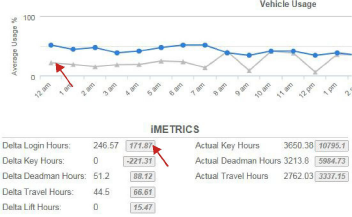
The company averages displayed on the report are based on the filters that were selected.
 Search for Vehicles or Operators
Print or Save Snapshot Reports
5.Click [Export Snapshot] Export Snapshot in the upper left corner. The Export Snapshot PDF window opens. An example follows:
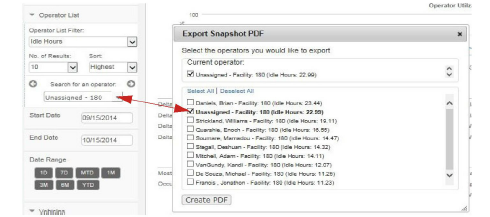
If an operator or vehicle is selected in the Search for an operator (or vehicle) filter, then that operator or vehicle check box is selected by default in the Export Snapshot PDF window. If no operator or vehicle filter is selected, then the report defaults to the first operator or vehicle in the list. In the example screen, "Unassigned" is selected in the filter and, therefore, is checked by default in the Export Snapshot PDF window.
6.Multiple operators or vehicles can be exported to one snapshot report. Select the check box next to each operator or vehicle that you want to export to the PDF. To select all the boxes, click [Select All] Select All. To deselect all the check boxes, click [Deselect All] Deselect All.
7.Click [Create PDF] Create PDF.
8.The report opens as a PDF file ready to print or save.
Related Links
•Search for Vehicles or Operators


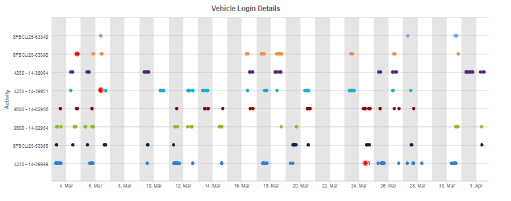
 ,
indicates alarm level impacts. The hover text for impact points show
details about the impact. The information for each vehicle or operator
is colored differently to make the information easier to read.
,
indicates alarm level impacts. The hover text for impact points show
details about the impact. The information for each vehicle or operator
is colored differently to make the information easier to read.